MetaLaunch Placement
Every drive, round and offer in one place.
Placement software for university and college placement cells: cycles, jobs, rounds, eligibility and offer rules, segments, campaigns, recruiter links, events and dashboards, with a Profile every student owns.
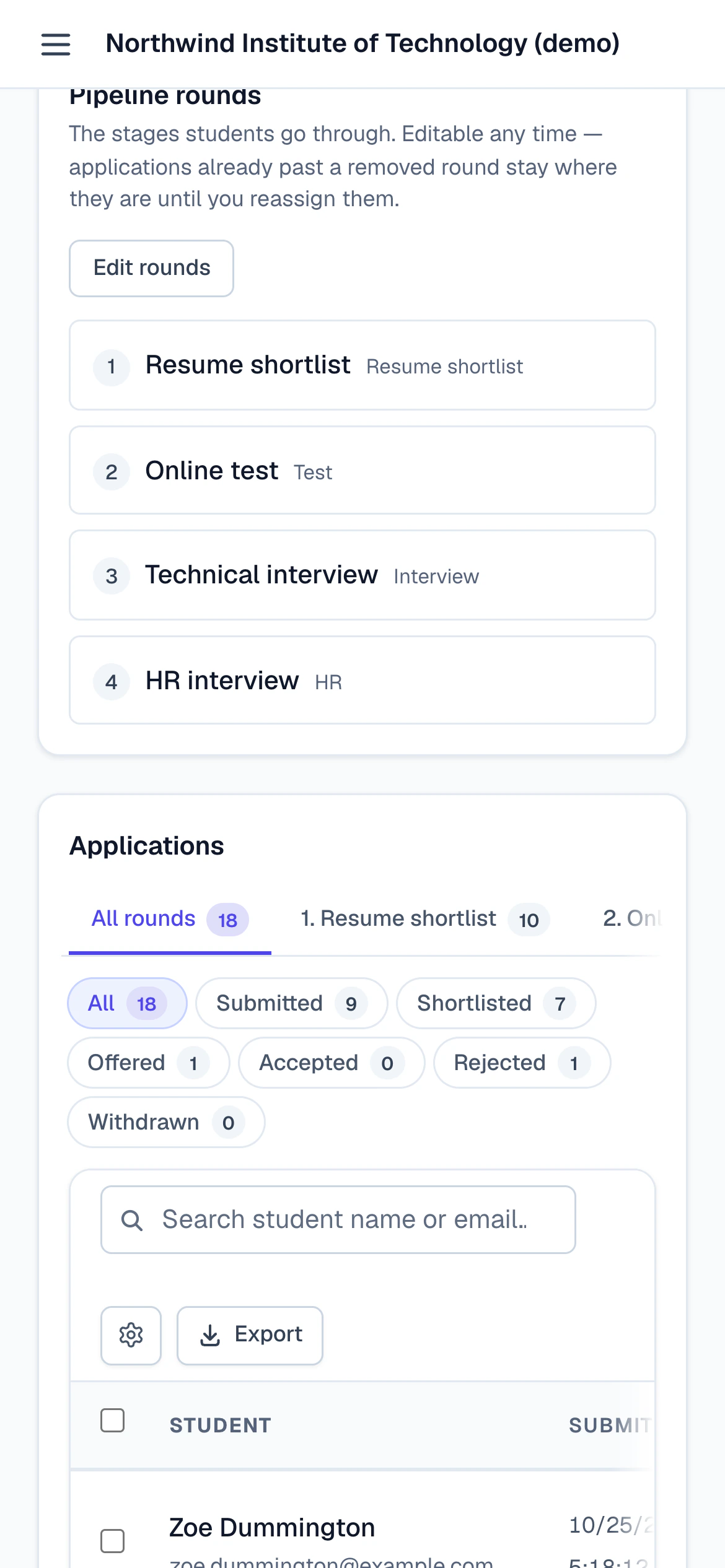
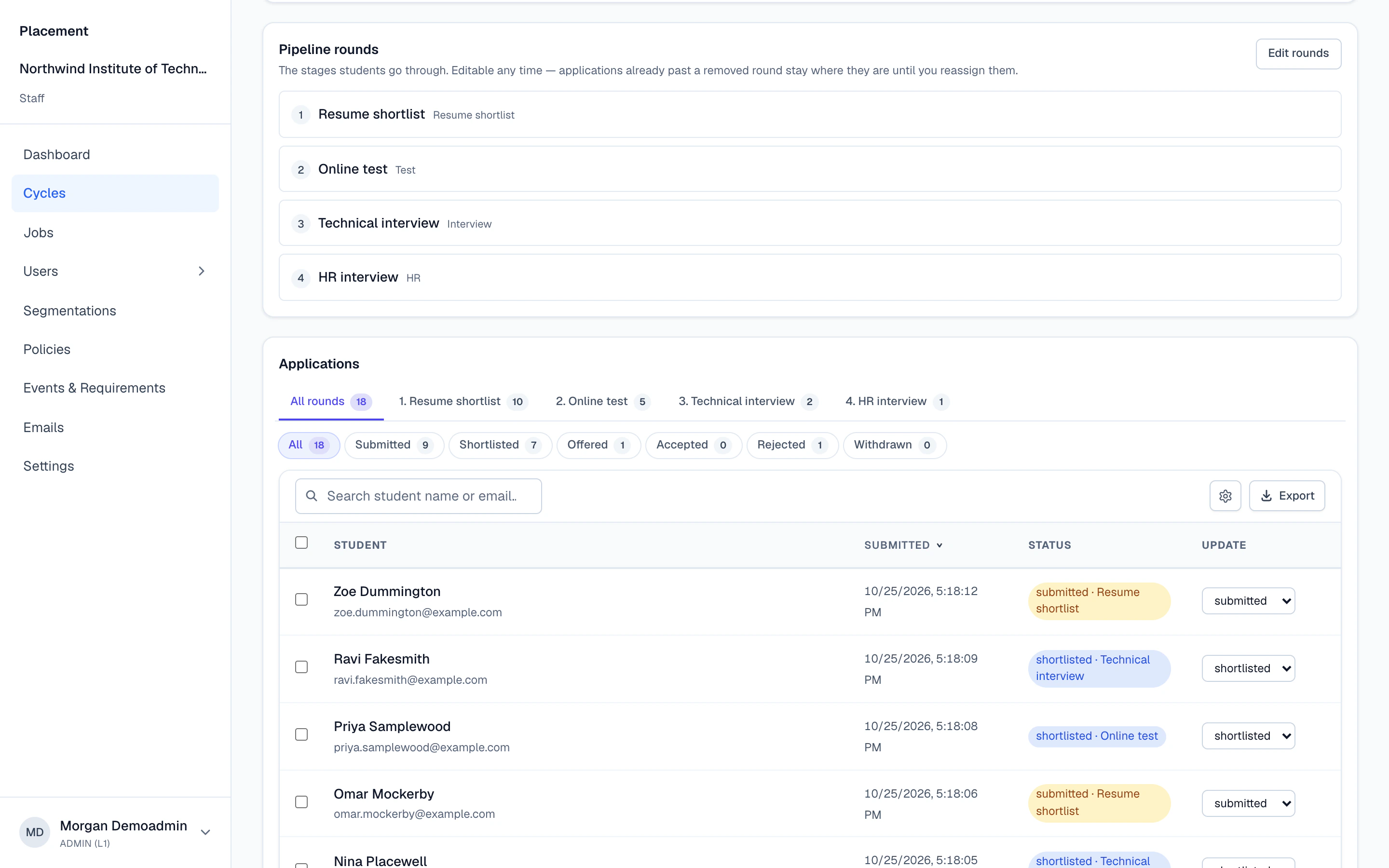
Step 1 of 4
Rounds
- RoundsThe stages of this job's process, editable at any time.
- Round tabsSee who is at each round, with a count per round.
- StatusWhere each student stands, and at which round.
- UpdateMove a student on, offer or reject, one at a time or in bulk.
A cycle, end to end
From eligibility to offer.
- 1Open a cycleChoose the batches it admits and the rules it follows.
- 2Add jobsEach company's role, with its tier, CTC, deadline and its own rounds.
- 3Students applyOnly students your rules allow can apply or withdraw, and they see why when they can't.
- 4Run the roundsMove applicants round by round, in bulk. Recruiters can update outcomes through their own link.
- 5Record offersYour offer rules apply to what comes next, so the next eligibility check is already right.
Cycles, jobs and rounds
Your season, set up the way your office runs it.
- Cycles
- Open a placement or internship cycle for the batches it admits: a draft, then active, then closed.
- Enrollment
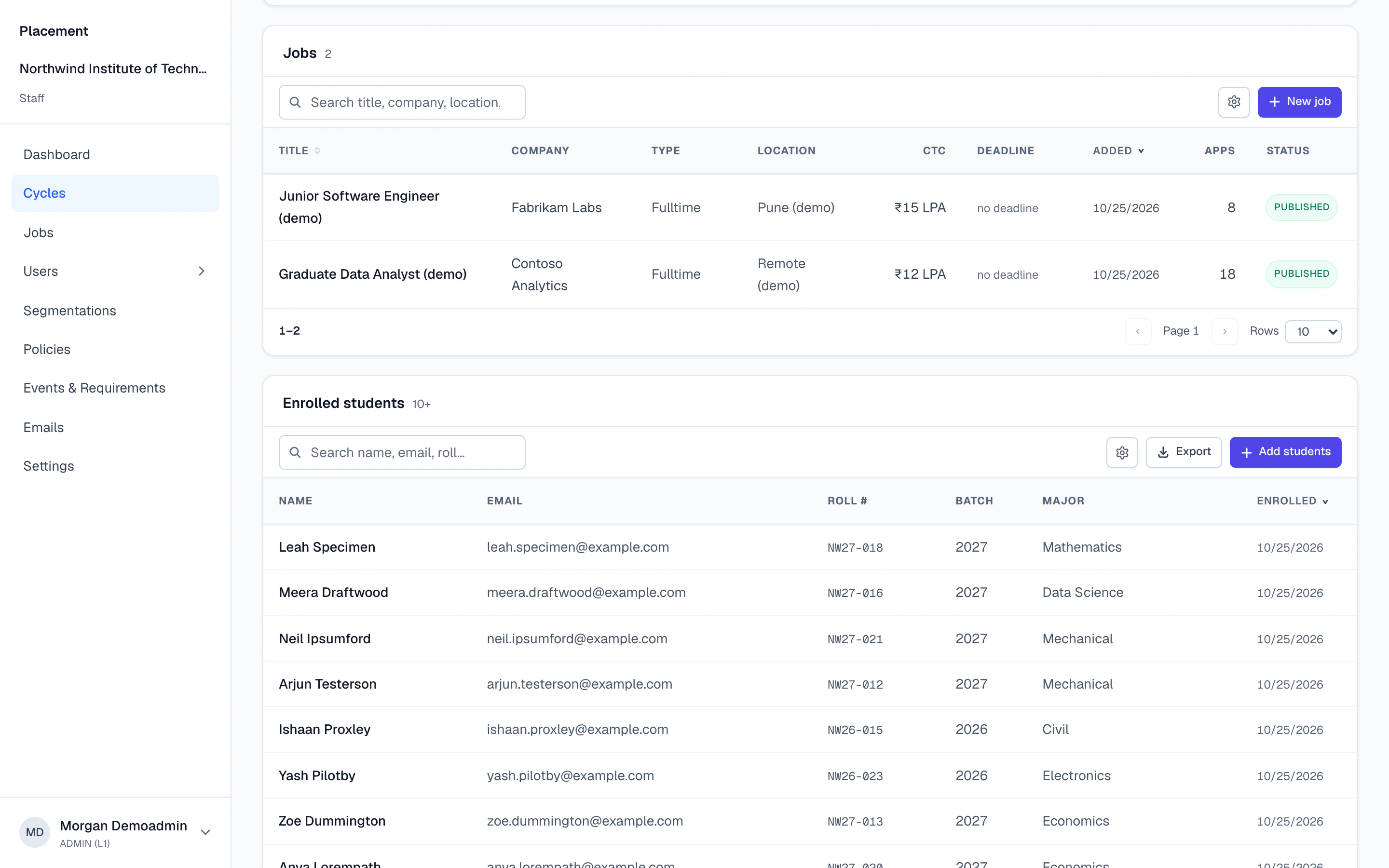
- Enroll students in bulk or from a segment, or let eligible students enroll themselves.
- Jobs
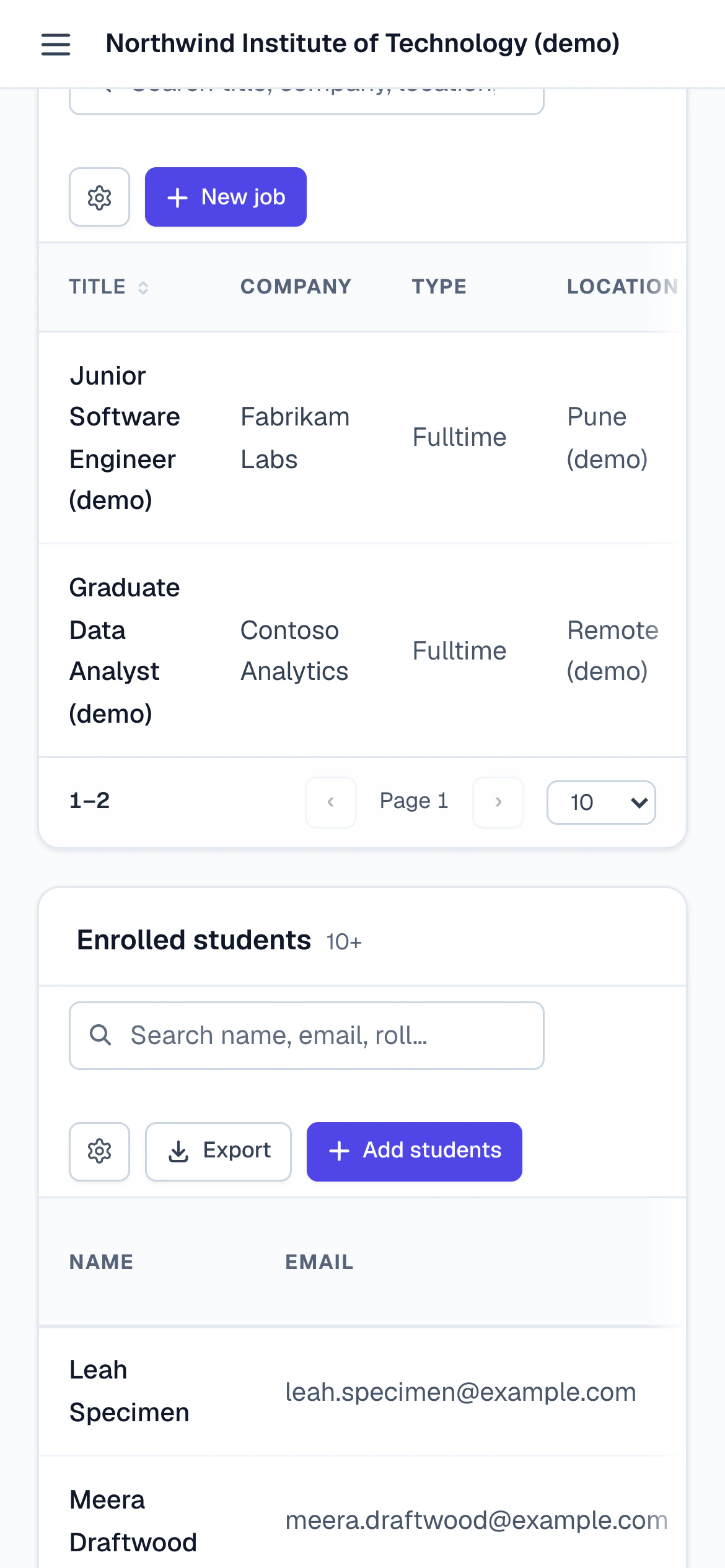
- Each company's role with its tier (Tier 1, 2 or 3, dream or open), CTC and breakdown, location and deadline, and its own eligibility on top of the cycle's. Publish it, pause applications or close it.
- Rounds
- Each job has its own rounds. Add, rename or reorder them at any time; students see each job's rounds and where they are.
- Bulk moves
- Applicants by round, in tabs. Move many to the next round, reject or make offers in bulk. Every application keeps its history: who, when and the note they left.
Eligibility and offer rules
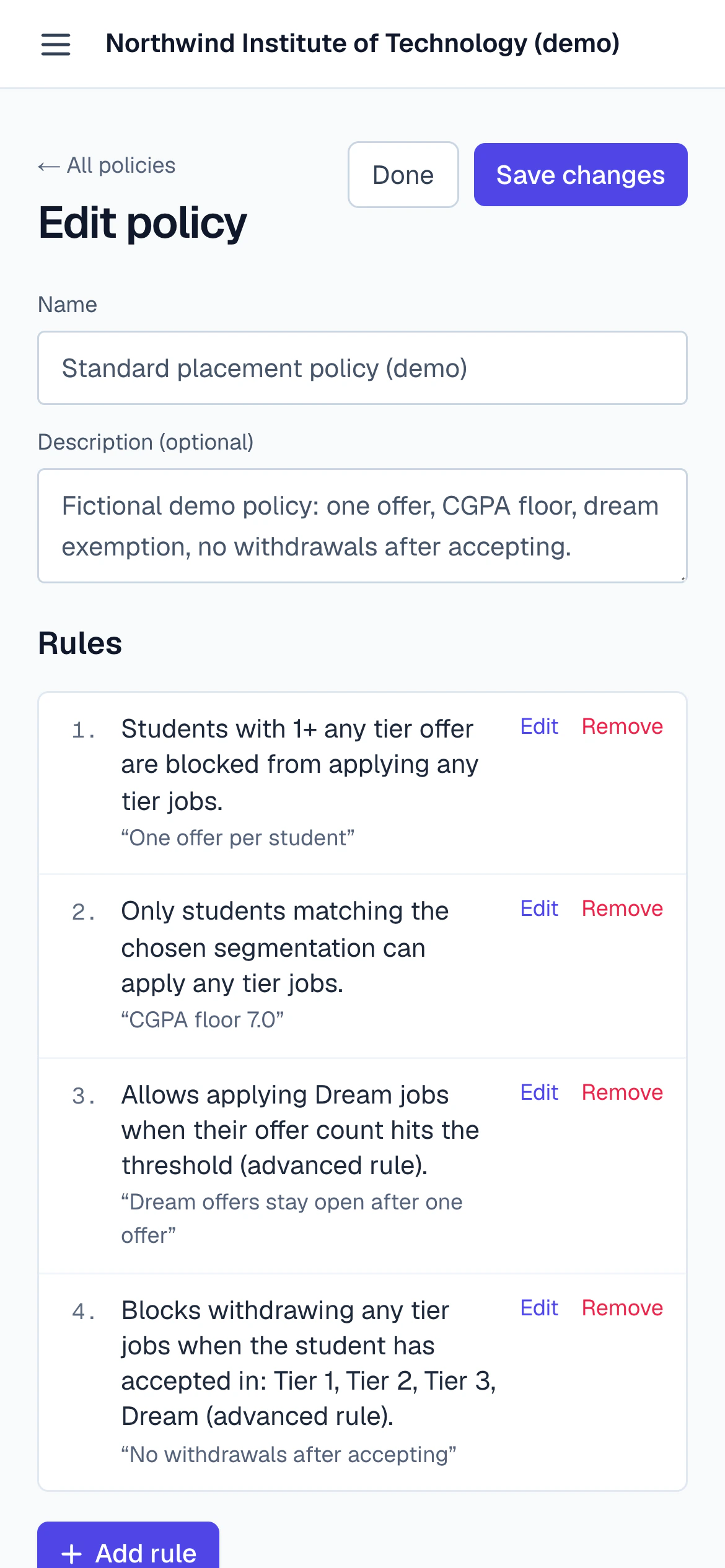
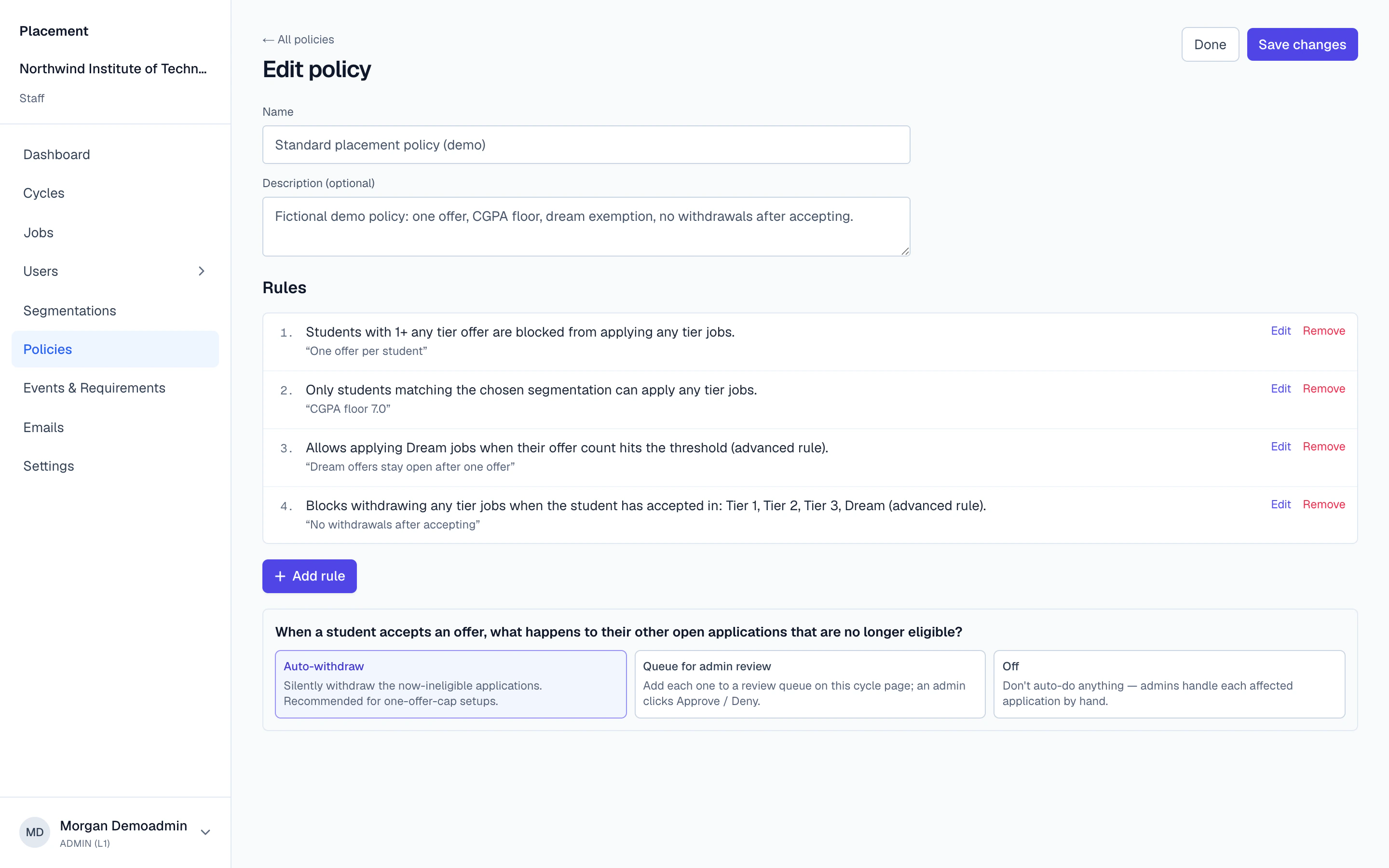
Write your placement policy once.
- Eligibility
- CGPA, batch, major, minor, category, gender, profile verified, and application or offer history, plus your own yes or no flags.
- Offer rules
- Offer caps, application caps, lockout after accepting a tier or after withdrawing, segment-only jobs, and named students allowed or blocked. An AND/OR builder covers the rest.
- Templates
- Start from eight ready-made rule templates, save your own, and reuse them across cycles.
- Reasons
- Students can only apply or withdraw when your rules allow, and they're told why when a rule blocks them.
- After an offer
- When an offer is accepted, the student's lower-tier applications are withdrawn automatically or queued for your review.
Segments and campaigns
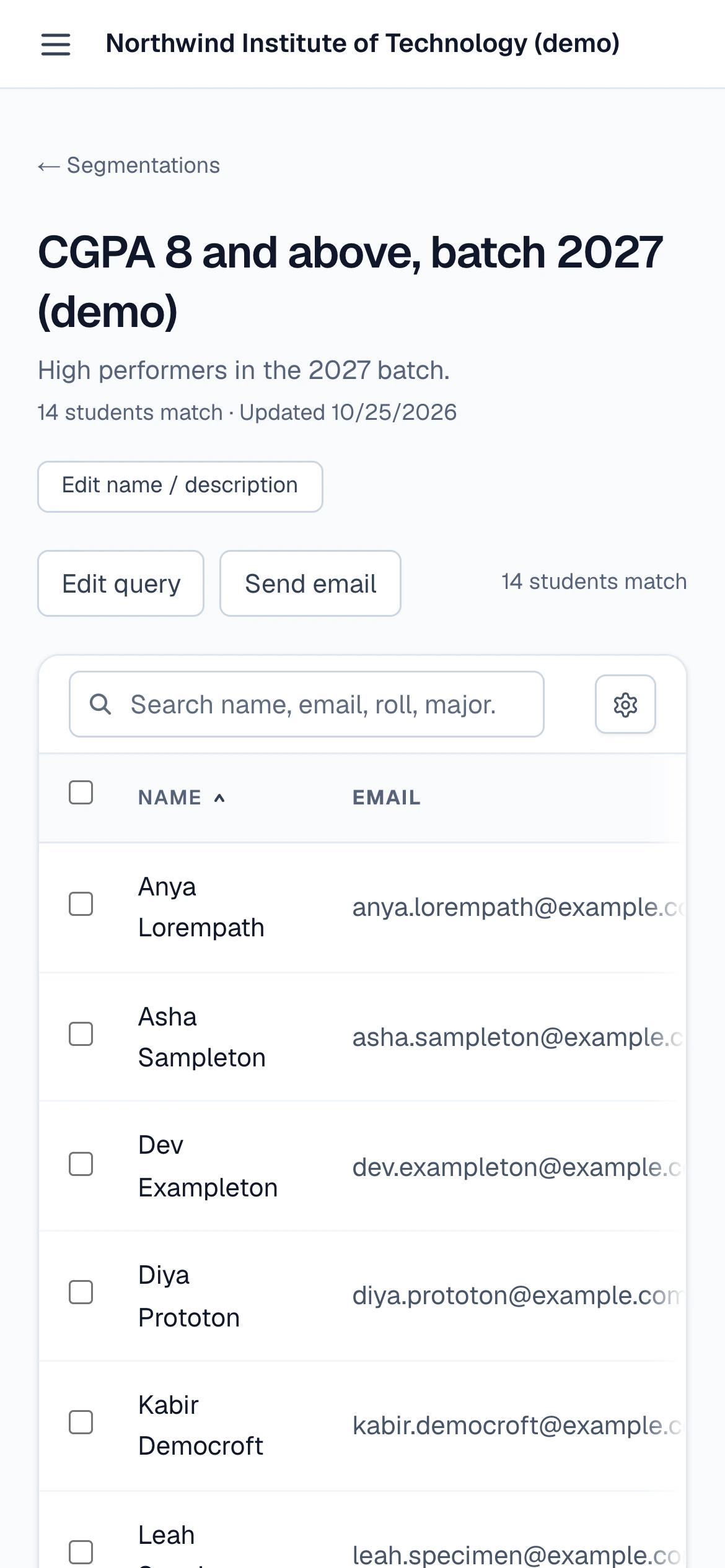
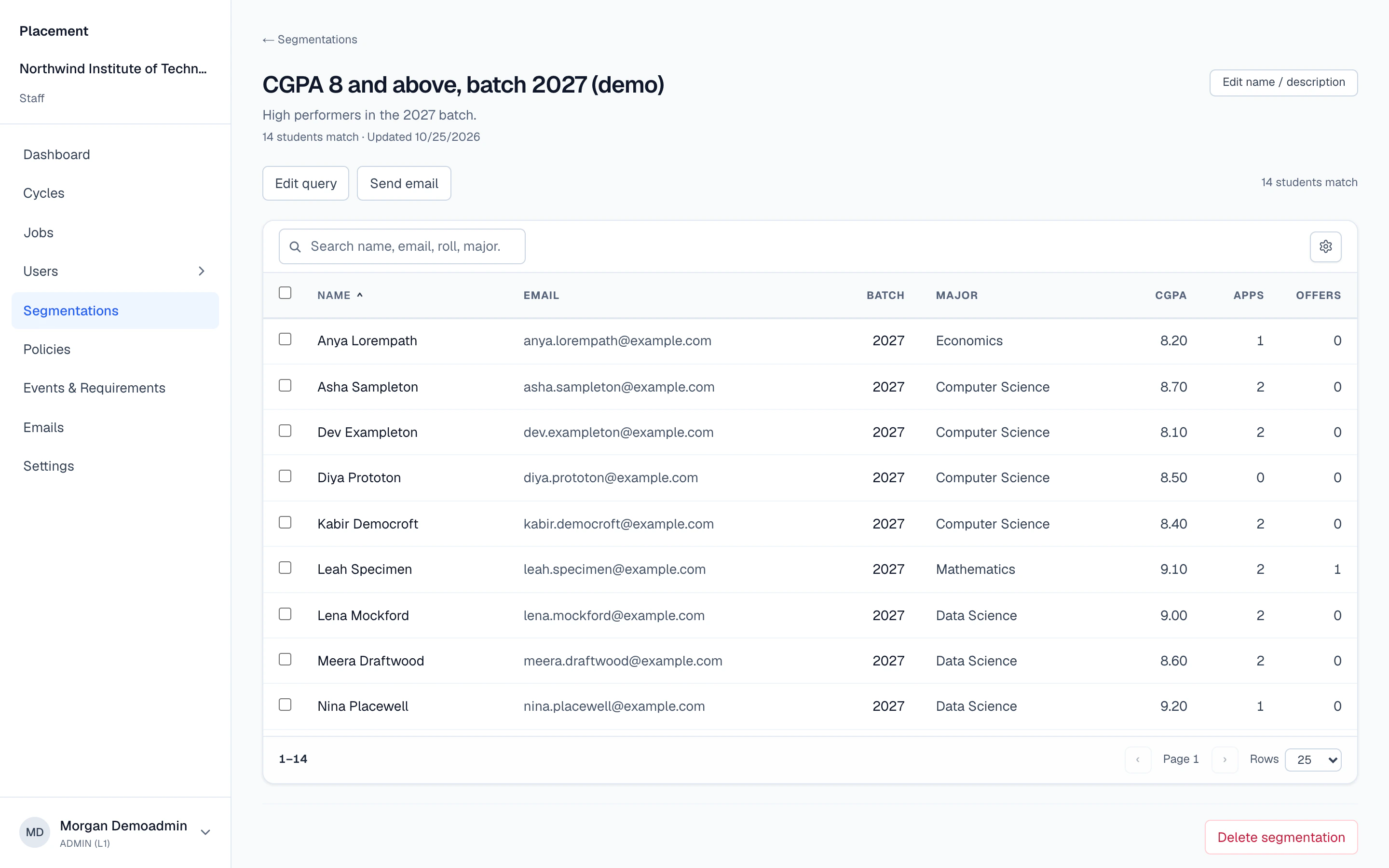
Ask a question about your students once, and keep using the answer.
- Live segments
- “CS batch, 7.5+ CGPA, no offer yet”, built with AND/OR, saved or one-off, and always current.
- Used everywhere
- The same segment drives eligibility, enrollment, campaigns, events, dashboards and CSV exports.
- Campaigns
- Email a segment from your institution's own mailbox, now or scheduled, with delivery status for each student.
- Your mailbox, protected
- Your mailbox password is encrypted at rest (AES-256-GCM).
Recruiter links
Recruiters update their own rounds.
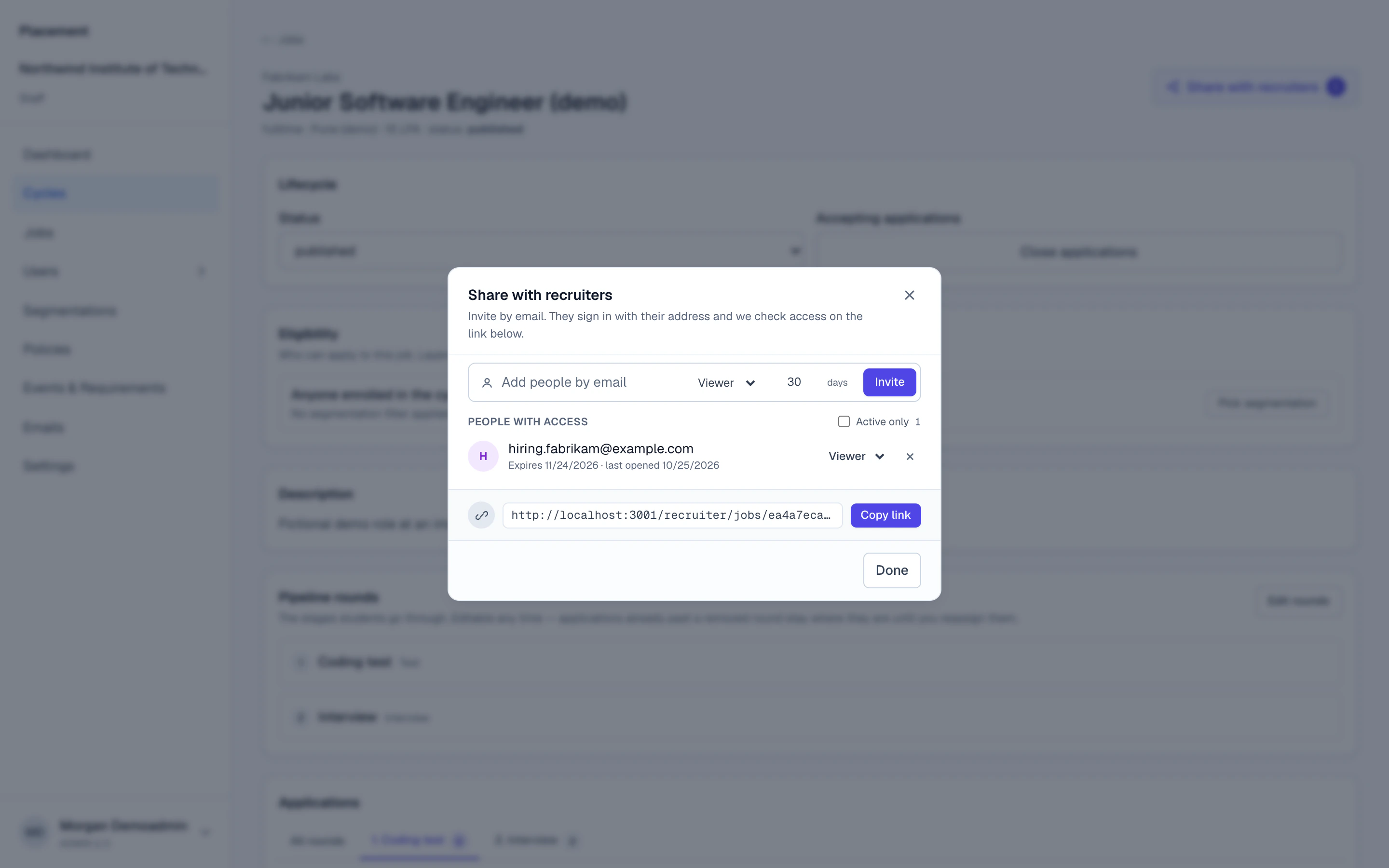
Share a link to one job. Recruiters move applicants through rounds themselves, so your office stops forwarding lists.
- You share a linkTo one job, with view or edit access and an expiry date (30 days by default).
- They sign inWith that email, using Google or an email link. No account at your institution; they see that job and nothing else.
- They update outcomesWith edit access, they update the job description and move applicants through rounds, one by one or in bulk.
- You stay in controlExtend it, change the access or revoke it at any time, and see when it was last opened.
Events and check-in
Know who came to the pre-placement talk.
- Events and requirements
- Pre-placement talks and workshops, and requirements like a CV review or a mock interview.
- Attendance
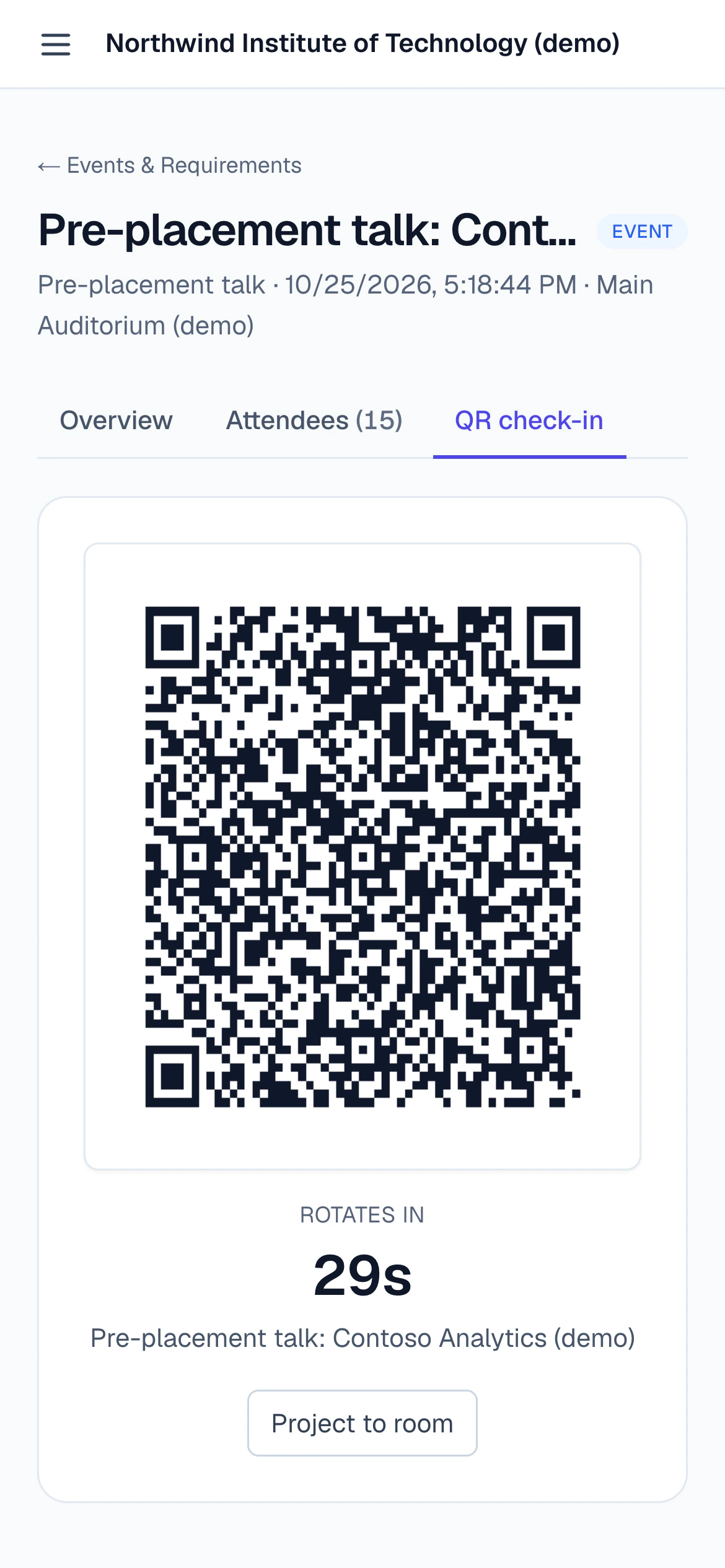
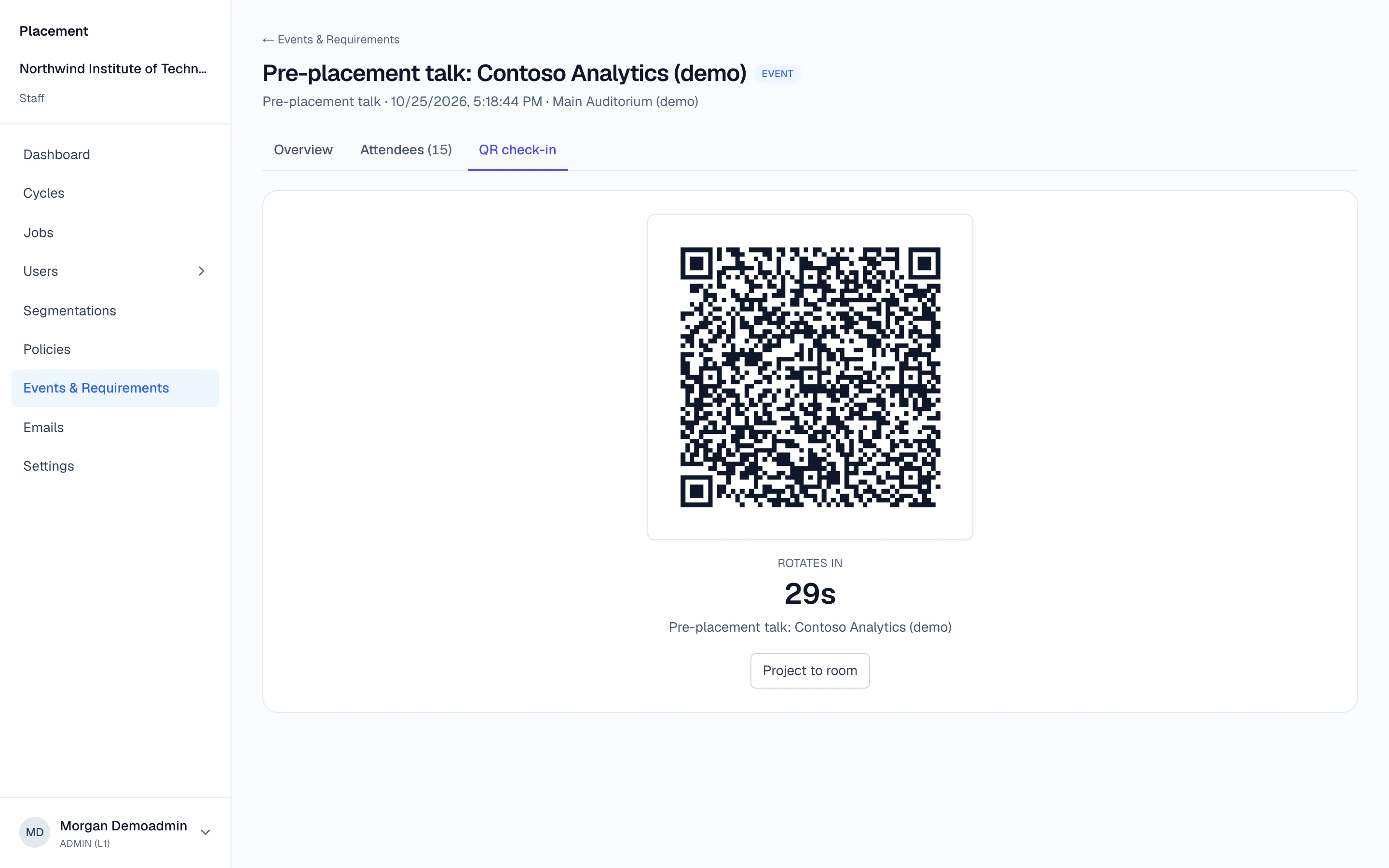
- Mark it by hand or from a segment, or with QR check-in: single-use codes that rotate every 10 seconds by default, full screen for a projector.
- Use it later
- Attendance works in segments: “attended the pre-placement talk” is one condition away.
Dashboards, exports and records
Your numbers, from your own questions.
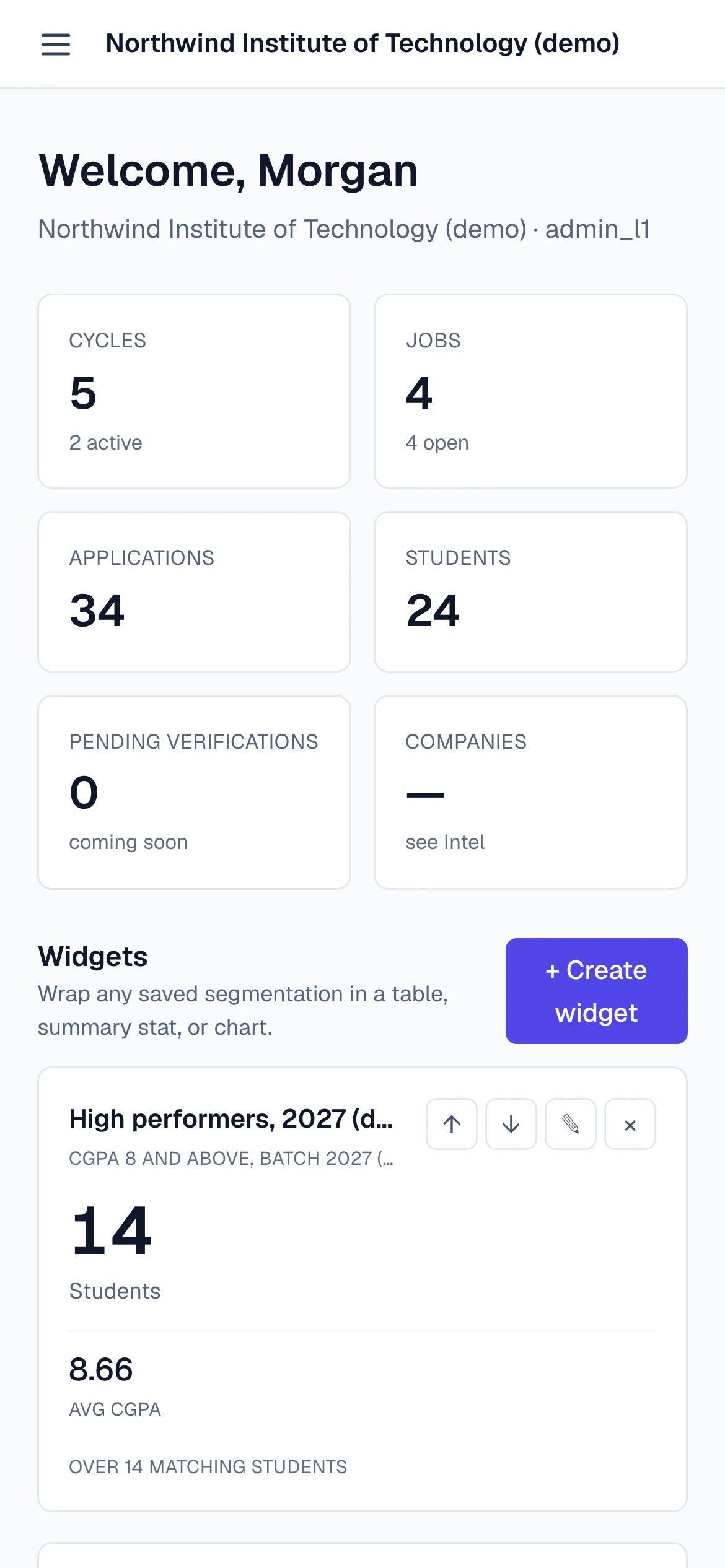
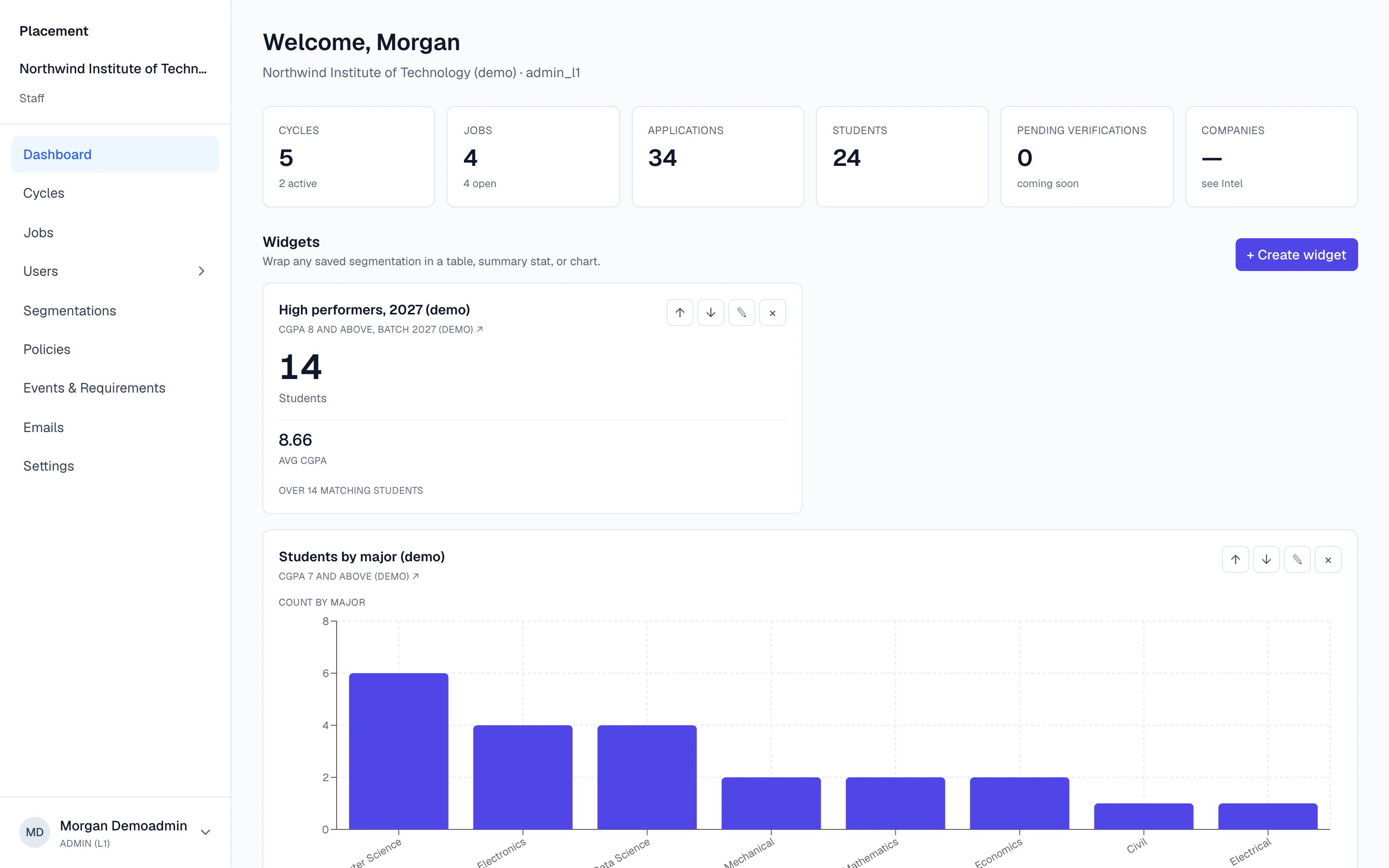
- Dashboards
- Widgets, each from a segment, shown as a headline number, a table or a bar, line, pie or area chart.
- CSV exports
- Students, staff, alumni, jobs, cycles, a cycle's students, a job's applicants and a verifier's list, with no row cap.
- Student import
- Import students from a CSV in the background: email and batch required; name, roll number, major and CGPA optional. Existing students are updated.
- Alumni
- Move graduating students to Alumni with their history, and restore them if you need to.
Your office
Built for how your office works.
- Roles
- Three admin levels, verifiers and students, only from your institution's list, never from an email domain. Admins can be limited to the cycles they run.
- Verifiers
- Verifiers have their assigned students, open their resumes and comment, privately if they choose.
- One workspace each
- Every institution has its own isolated workspace, and every request is scoped to it.
- Sign-in
- Google or an email link, which you can limit to your institution's domains plus your list.
- Students' own Profile
- Students use the same account for their own Profile and resumes. Staff open them read-only and comment; entries a student hides are left out, and the Profile stays with the student after they graduate.
- Accessible
- Every screen meets WCAG 2.2 AA and works on phones.
Questions
How is Placement priced?
Annually, priced per institution. Book a demo and we'll talk it through with you.
Do recruiters need an account?
Not at your institution. You share a link to one job; they sign in with that email, using Google or an email link, and see only that job, with the access you chose, until the link expires.
How do staff sign in?
With Google or an email link. You can limit sign-in to your institution's domains plus the people on your list.
What do students get?
Every student has a MetaLaunch Profile they own, with their resumes, Docs and Applications made from it. It's free for them and stays with them after they graduate.
Can staff use AI?
Staff can connect an Assistant to comment on student resumes. It sees only what that staff member can see.
How do we get started?
We set up your institution's workspace, you import students from a CSV and add your staff, and you open your first cycle.
See it with your next placement season.
30 minutes, the real product, no deck.